
The Expression Builder allows you to define when a rule or action should be performed, based on matching certain criteria.
For example, you could create an expression that tests for whether the inbound email is an automatic reply. This expression could be used to create a rule that suppresses out-of-office responses, as shown below:

The Expression Builder is flexible and can be used to create sophisticated workflows.
How to use the Expression Builder
- You can access the Expression Builder from a rule's
Expression input, or from the action step'sOnly perform this action if the following condition is metinput. - To build the expression, choose an input from the dropdown. You have a choice between:
- Data about the inbound email (starting
email.) - Metadata about the email (starting
meta.)
- Data about the inbound email (starting
- Next, choose an operator for the expression. The expression can compare using:
- Text – e.g. check if the input text begins with a certain string
- A regular expression – e.g. check if the input matches a certain pattern
- Boolean operators – e.g. check if the input less than another value
- Finally, choose the value that the input should be compared against.
- The calculated expression will display at the bottom.
- The rule or action step will only be performed if the expression is true.
Expressions with Multiple Criteria
It's possible to build an expression that has more than one criterion. To add another criterion, click the button at the top right:

You can also group criteria to build more complex expressions – these can be combined using AND or OR (see below). To do this, click the button at the top right:

For example, this expression would be true if the inbound email's subject line started with the text [Auto] and contained the text P0 or URGENT:
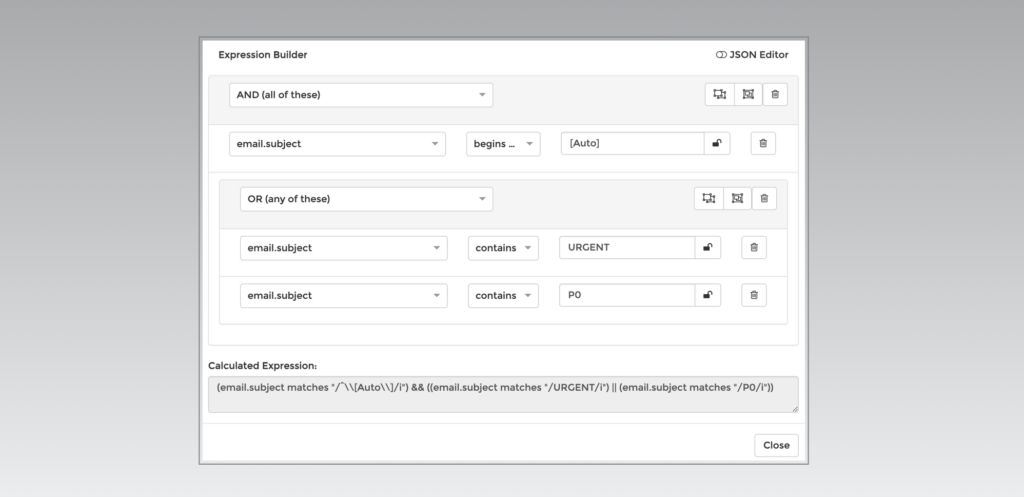
AND vs OR expressions
You can choose if the criteria should be combined using:
AND– for the expression to be true, ALL of the criteria must be trueOR– for the expression to be true, ANY of the criteria must be true
You can choose which option applies from the dropdown menu.